
The message “Your noCAPTCHA user response code is missing or invalid” can appear during LinkedIn registration or login, preventing the form from being submitted.
The error can have several causes, from a verification component that fails to load to a browser or connection issue. Understanding where the problem occurs is the first step toward resolving it.
What Does the noCAPTCHA Error Mean on LinkedIn?
A CAPTCHA verification helps a website distinguish human activity from automated activity. During the process, the page may generate a response token for the website to validate.
The error suggests that a verification response was missing or could not be accepted. This can leave LinkedIn registration or login incomplete, but the message alone does not mean that the account has been restricted.
For comparison, Google reCAPTCHA uses separate error codes for a missing response, an invalid response, and an expired or previously used response. These are Google’s definitions; They do not establish which verification service LinkedIn currently uses or how LinkedIn classifies this error.
What Happens When the noCAPTCHA Response Code Is Missing or Invalid?
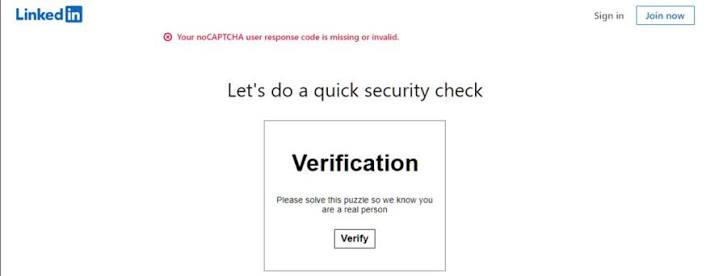
The main effect is that LinkedIn may not accept the form. During registration, the account setup may stop at the verification step. During login, the session may not continue to the account.
Reloading the page may require the verification to be completed again. If the error keeps appearing, it can delay access to the account and interrupt tasks that depend on it.
The message alone does not establish that an account has been restricted. It indicates that the verification response was not accepted; The next step is to identify where the process failed.
Why Does “Your noCAPTCHA User Response Code Is Missing or Invalid” Appear on LinkedIn?
The error can appear at different points during LinkedIn verification. The following are possible causes to investigate, rather than confirmed explanations for every case.
1. The Verification Did Not Load or Finish
A verification component or a required script may fail to load. If verification does not finish, the form may be submitted without the expected response.
2. The Verification Response Is No Longer Valid
Some verification systems use tokens that expire or can be submitted only once. A long delay or a repeated form submission can make a fresh verification necessary.
3. The Browser Interfered With the Page
An outdated browser, an extension, or stored cookies and cached data may interfere with the LinkedIn page. Browser settings can also affect whether verification components load.
4. The Network or Proxy Connection Was Interrupted
A connection interruption or incorrect proxy setting may prevent part of the page from loading or submitting. Testing another connection can help determine whether the issue is related to the current network.
5. LinkedIn Could Not Process Verification
The problem may occur on the service side. If the same error continues across browsers and networks, LinkedIn support may need to investigate.
How to Fix “Your noCAPTCHA User Response Code Is Missing or Invalid” on LinkedIn
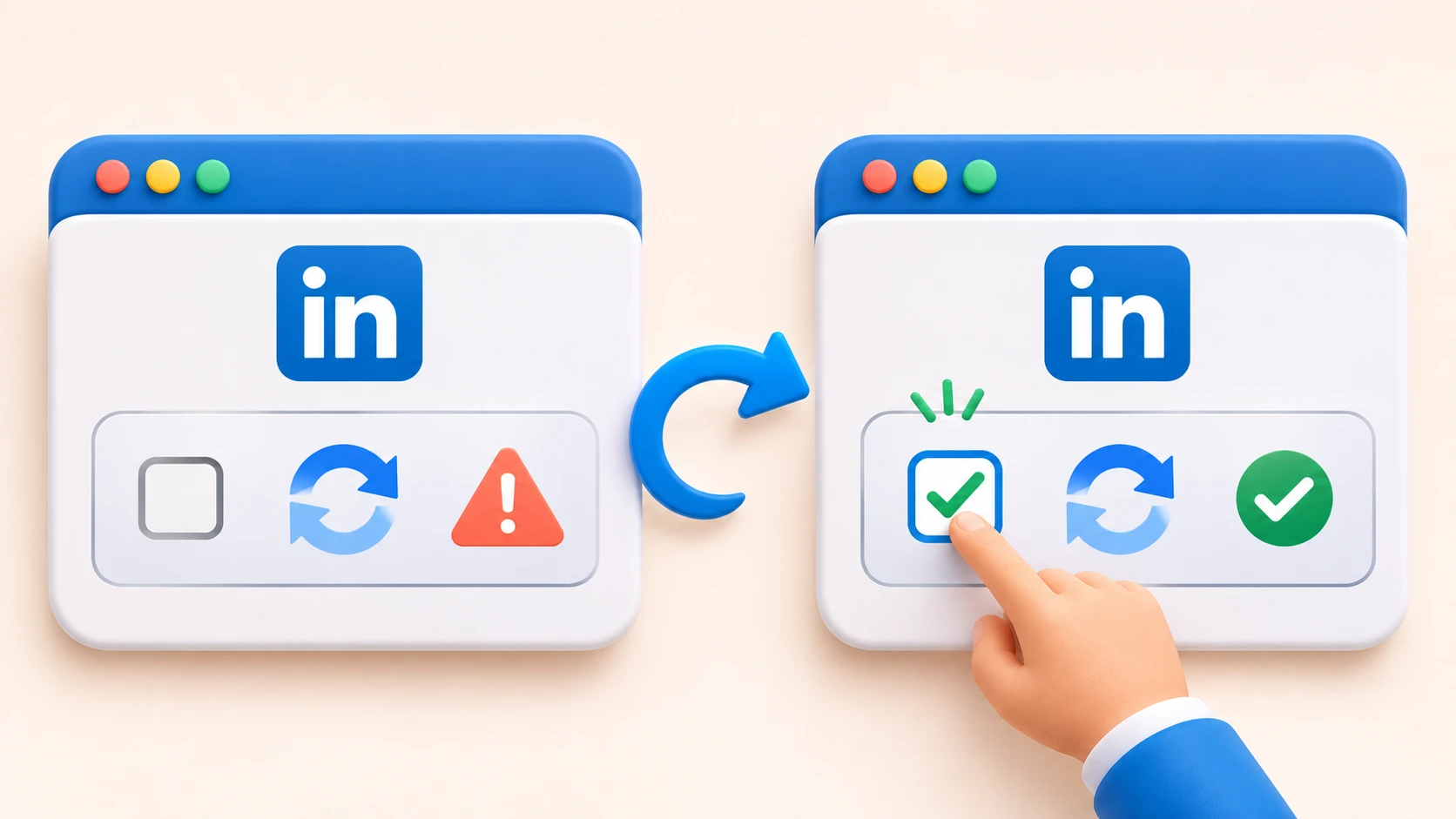
Try the steps below in order. After each change, return to LinkedIn and test the form again.
1. Reload the LinkedIn Page
Reload the registration or login page and wait for it to finish loading. Complete the verification challenge if one appears, then submit the form.
If the page has been open for a long time, a fresh attempt can avoid reusing an old verification response.
2. Try a Private Window and Check Extensions
Open LinkedIn in a private browsing window and try again. If verification works there, an extension or stored browser data may be involved.
Temporarily disable extensions that affect page content or scripts, then test the regular browser window. Confirm that JavaScript is enabled and that the browser is up to date.
3. Clear LinkedIn Cookies and Cached Data
Clear the relevant stored data and reopen LinkedIn. This can remove old page data that may be interfering with the current attempt.
Clearing cookies may sign the user out. Depending on the options selected, clearing all browser cookies can also sign the user out of other websites. LinkedIn’s browser troubleshooting guidance also recommends trying a private window and another browser.
4. Try Another Browser
Open LinkedIn in the current version of a different browser. If the CAPTCHA image does not appear, LinkedIn suggests trying another supported browser or updating the current one in its CAPTCHA troubleshooting guidance.
If verification works in the second browser, review the first browser’s settings and extensions before trying again.
Clear Step-by-Step Proxy IP Tutorials
Master proxy setup, integration and performance optimization quickly with IPFLY guides
5. Test a Different Network
Switch from Wi-Fi to a mobile hotspot, or from a hotspot to Wi-Fi, and repeat the verification. Keep the browser and steps the same, so the network is the main change being tested.
If the error appears on one connection but not the other, check the connection that failed. A network interruption or configuration issue may be affecting the page.
6. Check an Existing Proxy Connection
If a proxy is already configured, try the page without it when the network setup permits. LinkedIn’s security verification guidance recommends avoiding proxy servers to reduce security challenges.
If a proxy is needed for another task, check its server address, port, protocol, and authentication details against the provider’s information. The proxy address and port can usually be found in device network settings or the provider’s dashboard.
A correct configuration can resolve a connection setup issue, but it does not guarantee that LinkedIn will accept a verification response.
7. Contact LinkedIn Support
If the error continues across browsers and networks, contact LinkedIn support. Include:
- The exact error message and the page where it appeared.
- The approximate time and the steps that led to the error.
- The browsers and network checks have already been tried.
- A screenshot, if available.
Do not include passwords or verification tokens in the request.
How IPFLY Proxy Help With Network-Related noCAPTCHA Errors
When a verification page works on one connection but fails on another, the network or its proxy configuration deserves a closer look. IPFLY offers two residential proxy products for different connection needs.
IPFLY Residential Proxies
IPFLY Residential Proxies provide residential IPs in different locations and support sticky sessions. A sticky session can keep the same IP for a defined period, so the verification page can be loaded and the form submitted through the same connection.
This product is a practical option for testing whether another connection changes the result. It also allows a location to be selected for the proxy connection.
IPFLY Static Residential Proxies
IPFLY Static Residential Proxies provide dedicated static IPs for tasks that need a consistent address over a longer period. They can suit an ongoing workflow where the same proxy connection is needed for repeated access, rather than only for a single verification attempt.
Which Product Fits This Problem?
For an initial network test, IPFLY Residential Proxies are the more flexible choice. Configure a sticky session, confirm that the proxy connection works, and reopen the LinkedIn page. Then complete the verification and submit the form during that session.
For longer-term use with a fixed IP, consider Static Residential Proxies. In either case, the result of the test matters: if the error continues across connections, the browser, response token, or website integration may need attention.
Frequently Asked Questions
1. What if LinkedIn CAPTCHA does not appear?
Reload the page, check JavaScript, or try the current version of another browser.
2. Why does LinkedIn still show the error after verification?
The response may not have been submitted or accepted. Reload the page, complete a fresh verification, and try again.
No. Clearing cookies may sign the user out, but it does not delete the account.
4. Can changing networks help?
It can help identify a connection issue. If LinkedIn works on one network but not another, check the connection that failed.
5. When should LinkedIn support be contacted?
Contact support if the error persists after trying different browsers and networks. Include the message, affected page, and steps already attempted.
Conclusion
The “Your noCAPTCHA user response code is missing or invalid” error can interrupt LinkedIn registration or login. Start with a fresh verification, then check the browser and network. If a proxy is in use, follow LinkedIn’s guidance and test the page without it where possible. For separate proxy needs, IPFLY offers residential and static residential products.